
How to setup your first preorder
With EZ Preorder you can setup your first preorder campaign in minutes. This guide will walk you through the process.
Enable the app embed
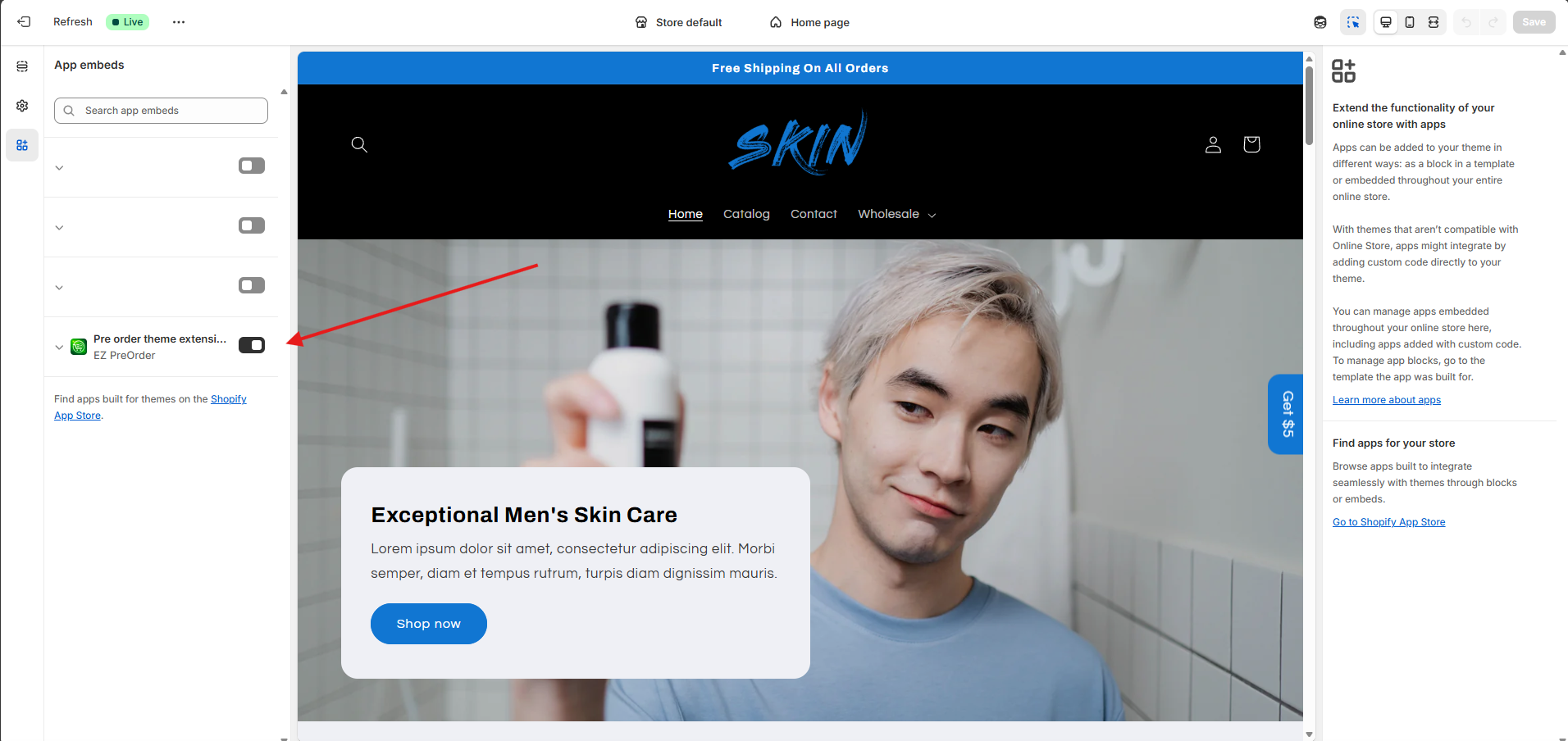
In order for the app to work you must first enable the app embed in your theme customizer. There's a button to do this on the home page of the app, or, you can go to Online Store > Edit Theme > App Embeds > Enable the EZ Preorder theme extension embed. This is the most important step, if this embed is not activated, the app cannot work in your store.
Add products to preorder list
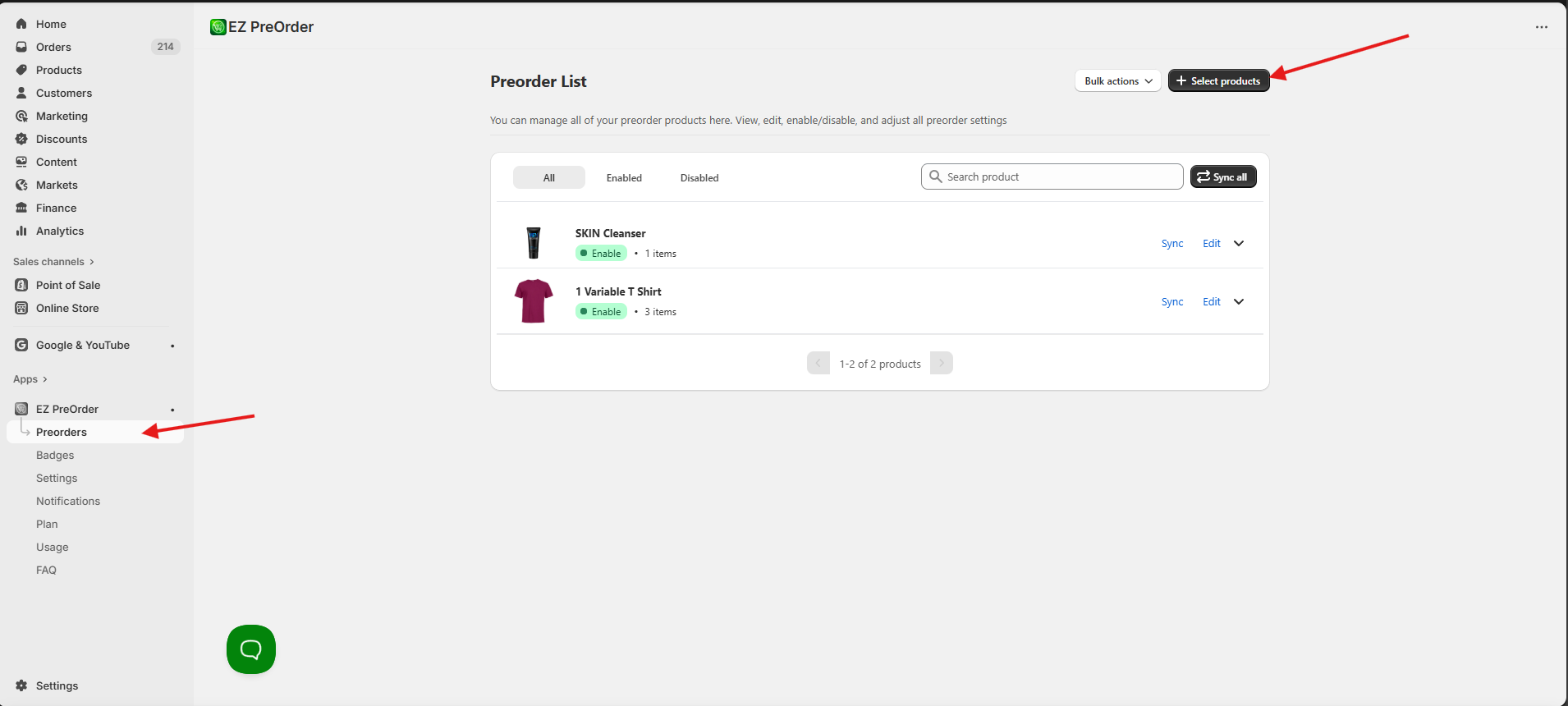
The preorder list can be found on the 'Preorders" page in the app. This page is where you can manage all of your active preorder products. You can add or remove products, or adjust their settings, at any time from this page. Click the Select products button in the top right to start adding products. You can also add products in bulk with the "bulk actions" option.
Edit preorder settings
When you initially add your products in, they will all be set with our default preorder setting of "Specific inventory level". This setting means the product is on preorder as long as there is inventory above 0. The app has 3 different preorder settings. These settings determine when your product is on preorder, so when the button will be displayed on that product. These settings will also toggle on/off your "continue selling when out of stock" setting on your products depending on the chosen setting.
- Specific inventory level - Product is a preorder when inventory is above 0 (continue selling when out of stock setting is disabled)
- Sold out - Product is a preorder when inventory is 0 or less (continue selling when out of stock setting is enabled)
- Always - Product is always a preorder regardless of inventory level (continue selling when out of stock setting is enabled)
Our preorders work at the variant level, meaning different variants can have different preorder settings. To edit a preorder products setting, simply click "edit" on the product in the preorder list.
From there, you can edit things such as whether or not the preorder is enabled/disabled, the preorder rule (when the product will be considered a preorder), and add a custom note to display above the preorder button.
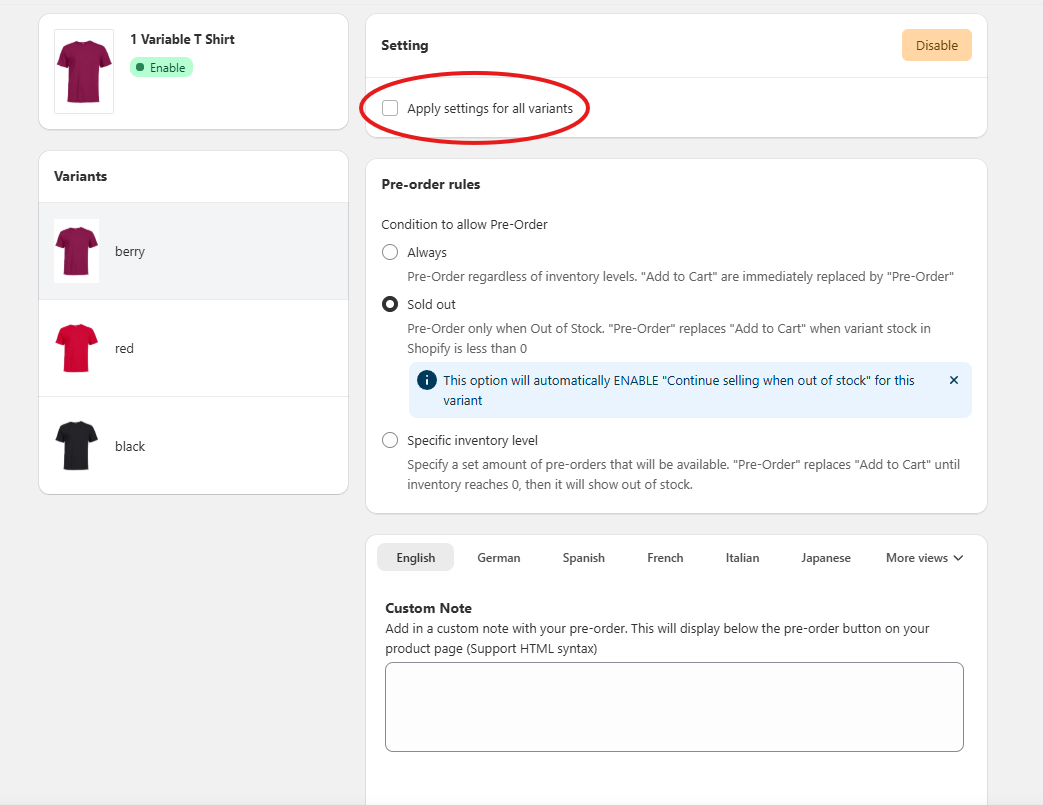
While editing, you can choose the "apply settings for all variants" option to apply the same settings to each variant. The custom note can also be set to a unique value for every language you have set in your store.
View preorder on store
At this point your preorder is ready to go. (for most users) In some cases depending on the theme you are using, you may have to make a quick tweak to the theme settings in the app.
Open up your store and navigate to your preorder product and check if the button is showing. Make sure that it is supposed to be showing based on your preorder rule as well. If you set the rule to "sold out" but the product has inventory, the preorder will not be displayed.
If the preorder button is displaying correctly for you, you're all set! You can stop here. If it isn't, then you need to open the app and go to Settings > Theme settings > Select theme.
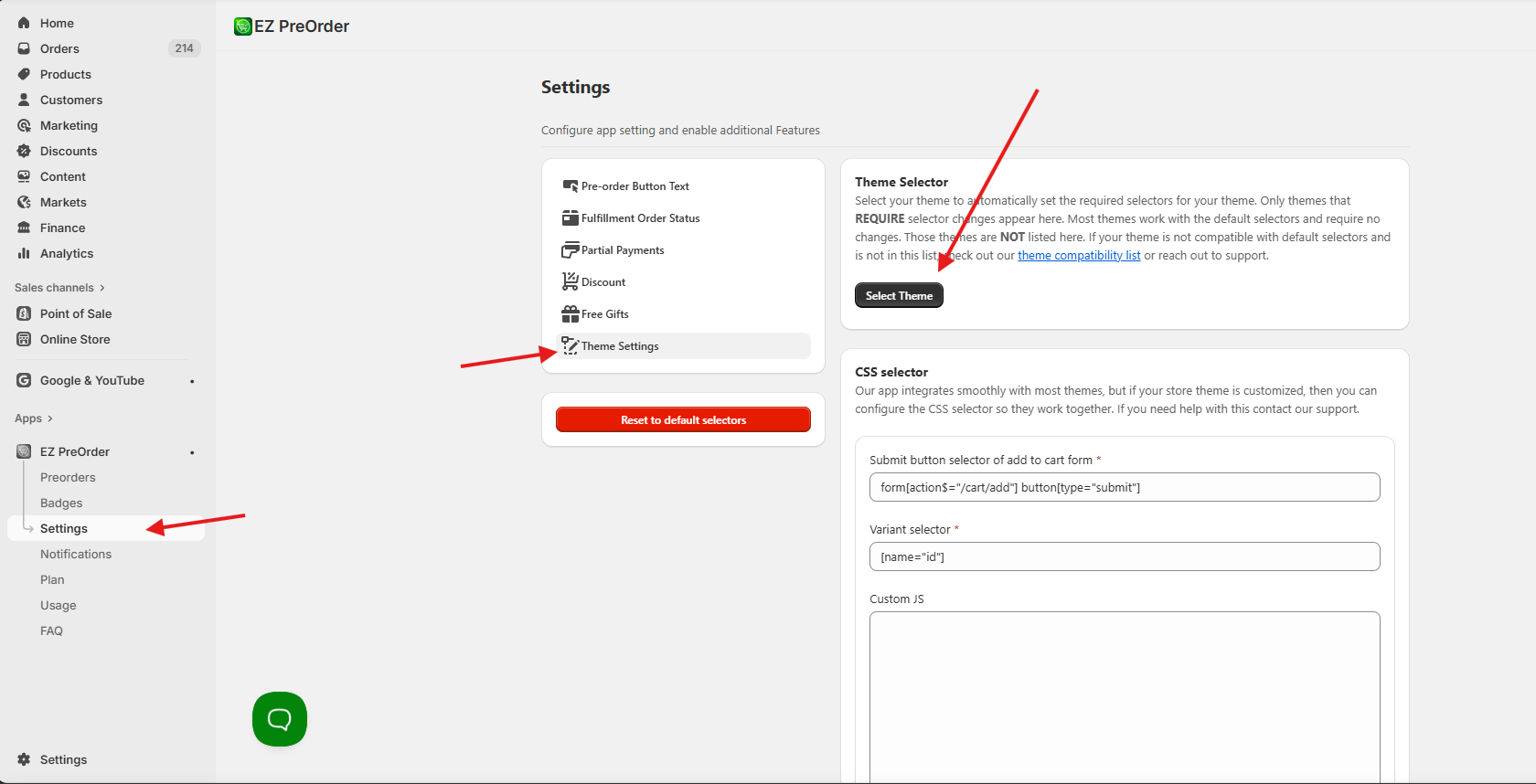
From here, see if your theme is listed in the options provided. If it is, select it, and your app setting will be changed to work with your theme. If you don't see your theme here, and the button isn't displayed when it should be in your storefront, then there are 3 possibilities.
- Another app/custom code/theme changes are interfering with the app. This is the most common one, as other preorder apps, or apps that impact the product page, specifically product variants, can block our app from working. If you reach out to support, we can confirm if this is the case for you. And if it is, you can decide if you want to disable the app causing the issue.
- Your theme is a known incompatible theme. We only have a handful of themes that are known to be incompatible, but if your theme is one of them, then unfortunately the app will not be compatible unless you switch themes. You can see our theme compatibility list here. Look under "Known incompatible themes" and check for your theme.
- Your theme may be compatible but we haven't tested it yet. If you have a theme that doesn't work with the default app settings, isn't on our select theme list in the app, and isn't on the known incompatible themes list, then we may not have tested with this theme yet. In this case, reach out to our support and we will test to see if the theme is compatible.
If you have any questions about setup or compatibility, please reach out to our support and we'll respond asap.