
How to setup restock alerts
To setup restock alerts in the app, go to the Restock Alerts page in the app admin. Once here, there are three steps you need to complete to be up and running. Adding the app block to your theme, and adding products to the restock list.
1) Add the add block to your theme
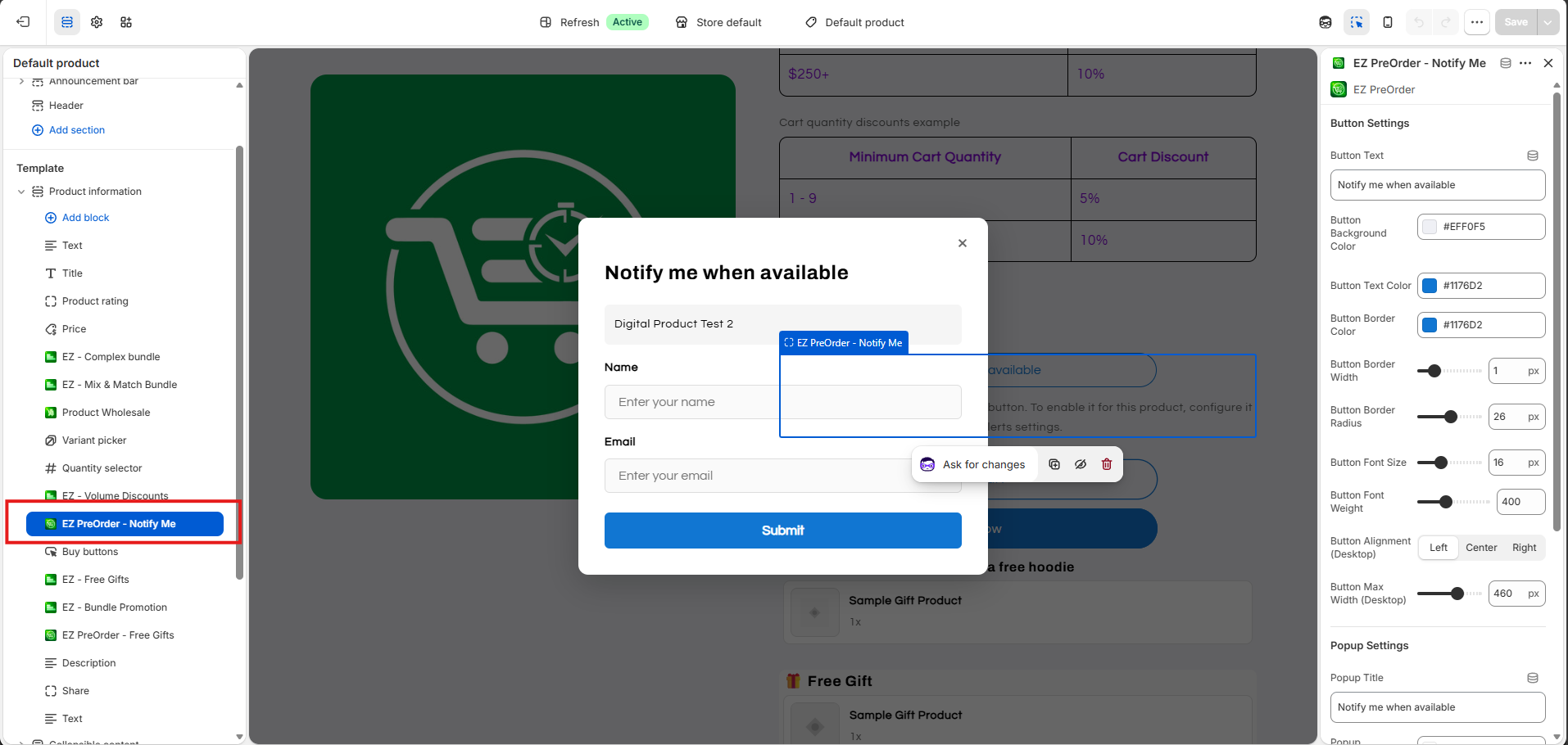
To add the block to your theme, open up your theme customizer > Go to product template > Add Block > Add the 'EZ Preorder - Notify Me' block to your product template. This block must be added to every product template that contains products that you will add to the restock alert list. You can customize the appearance of the notify me button directly in the theme customizer when adding it.
2) Add products to the restock list
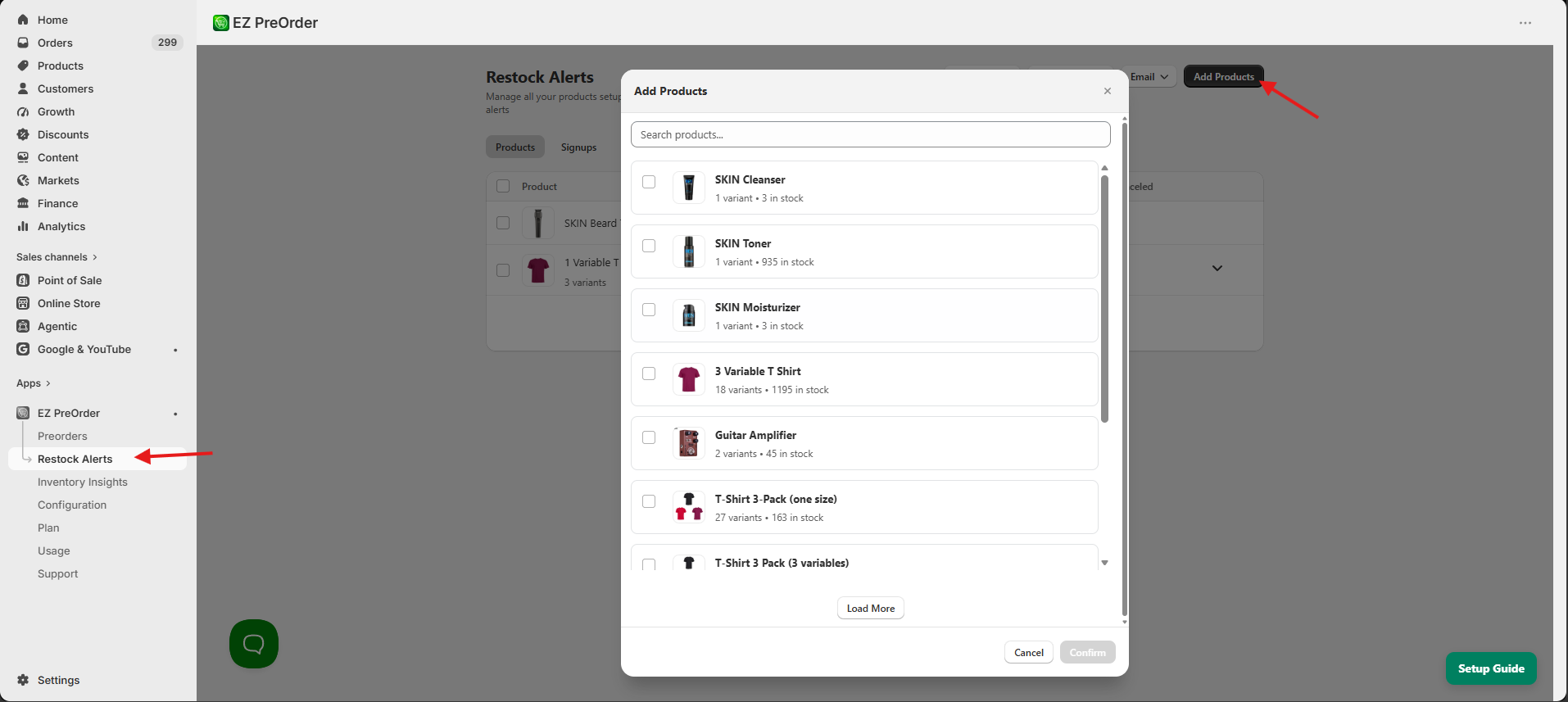
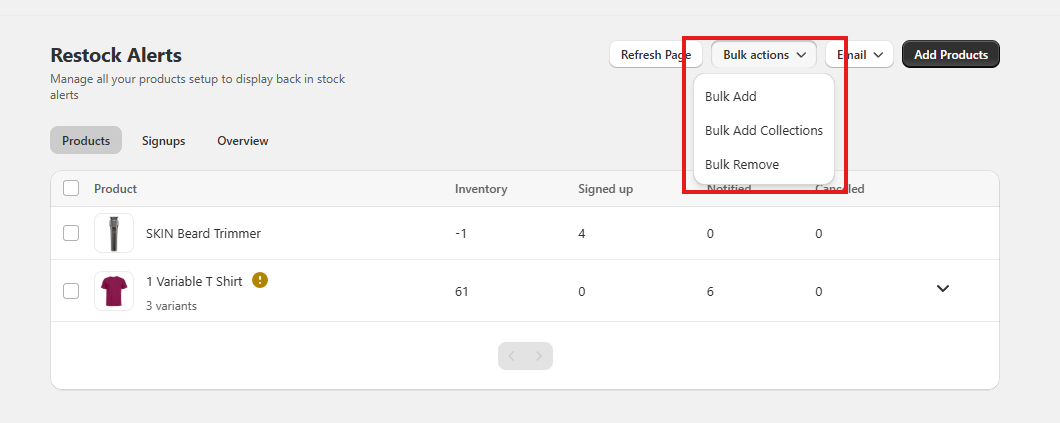
You can add products by clicking Add Products in the top right corner. This will open up a modal where you can add products to your restock list. You can also bulk add products to the list by using the Bulk Actions button.
3) Confirm product settings
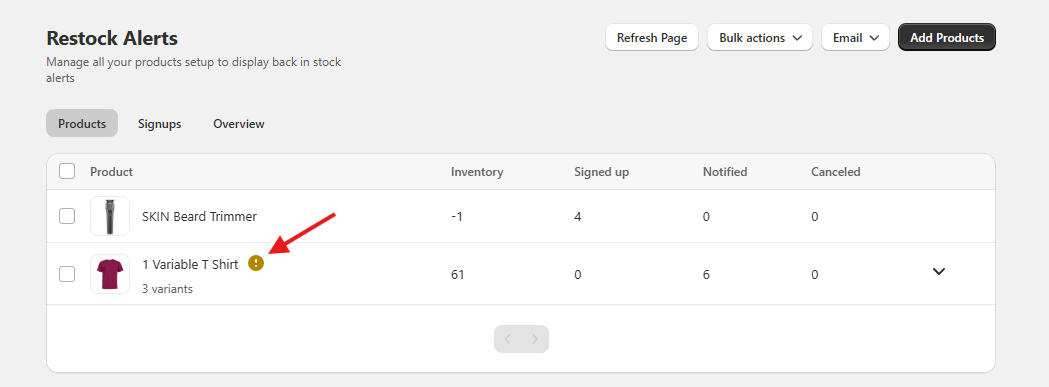
After you add products to the restock list, some of them may have a warning icon next to them. This means the product settings will need to be changed. For products on the restock list, 'track inventory' must be enabled on the product, and 'continue selling when out of stock' must be disabled. These 2 settings are required for the restock alert functionality to function properly.
If you have any trouble setting this up, please contact support.